.png?width=200&height=32&name=Logo_amaran_Blue_20240811a%20(3).png)
The amaran Halo 60x and amaran Halo 100x are controlled from the on-board knobs, buttons, and TFT display, and can also be controlled wirelessly through the amaran App or by wired DMX. This article covers the physical controls, the on-screen menu, and each control mode. Both lights share the same interface; where the two differ, it is noted below.
Controls Overview
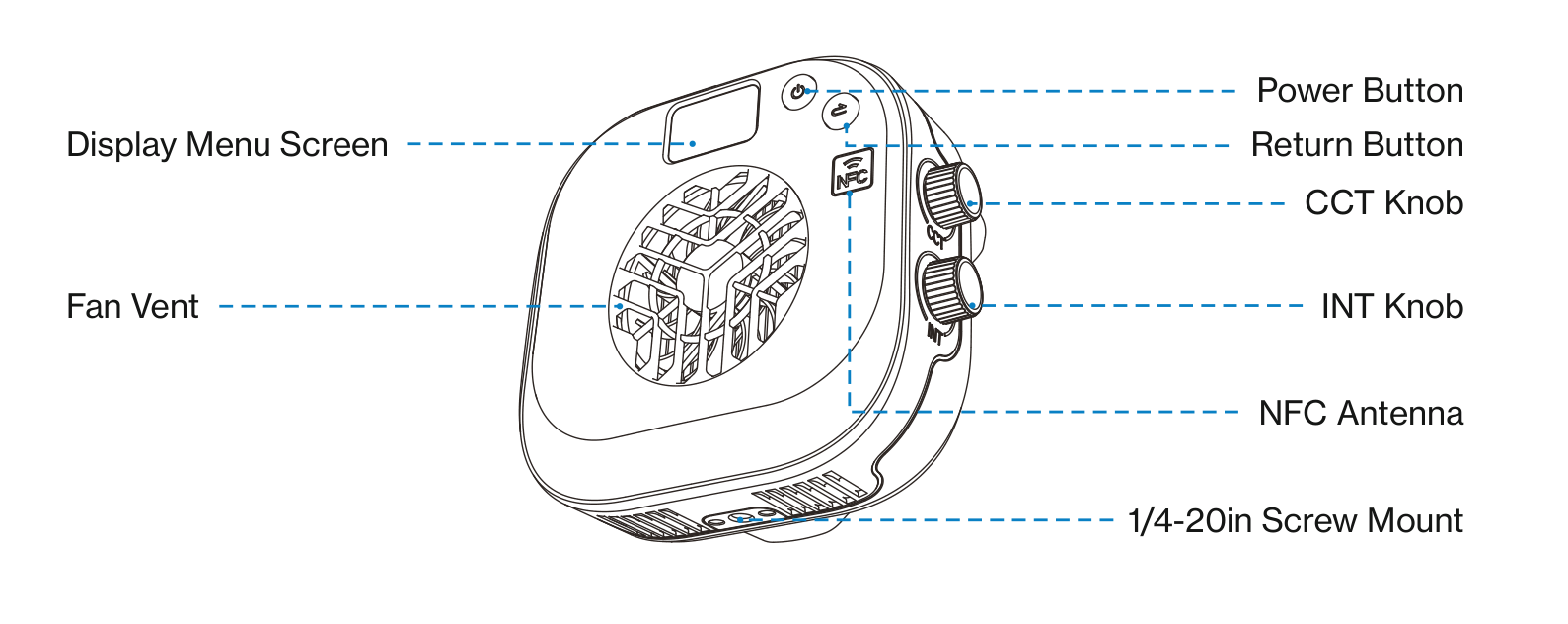
- Power Button: Press to turn the light on, press again to turn it off.
- Return Button: Click to return to the previous menu screen.
- CCT Knob: In CCT mode, rotate to adjust color temperature. In other menus, rotate to move through options or adjust values, and press to confirm.
- INT Knob: In any interface, rotate to adjust brightness. Press to switch to CCT mode.
- Display Menu Screen: Shows the light's settings and status.
- NFC Antenna: Used for NFC pairing. Bring a smartphone close to trigger a Bluetooth connection with the amaran App.
- Fan Vent: Dissipates heat. Do not block it while the light is in use.
- Bowens Mount Release Button: Press to release a Bowens Mount accessory.
- 1/4-20in Screw Mount: Mounts the light onto 1/4-20in tripods or other equipment.
Ports
The port layout is where the two models differ:
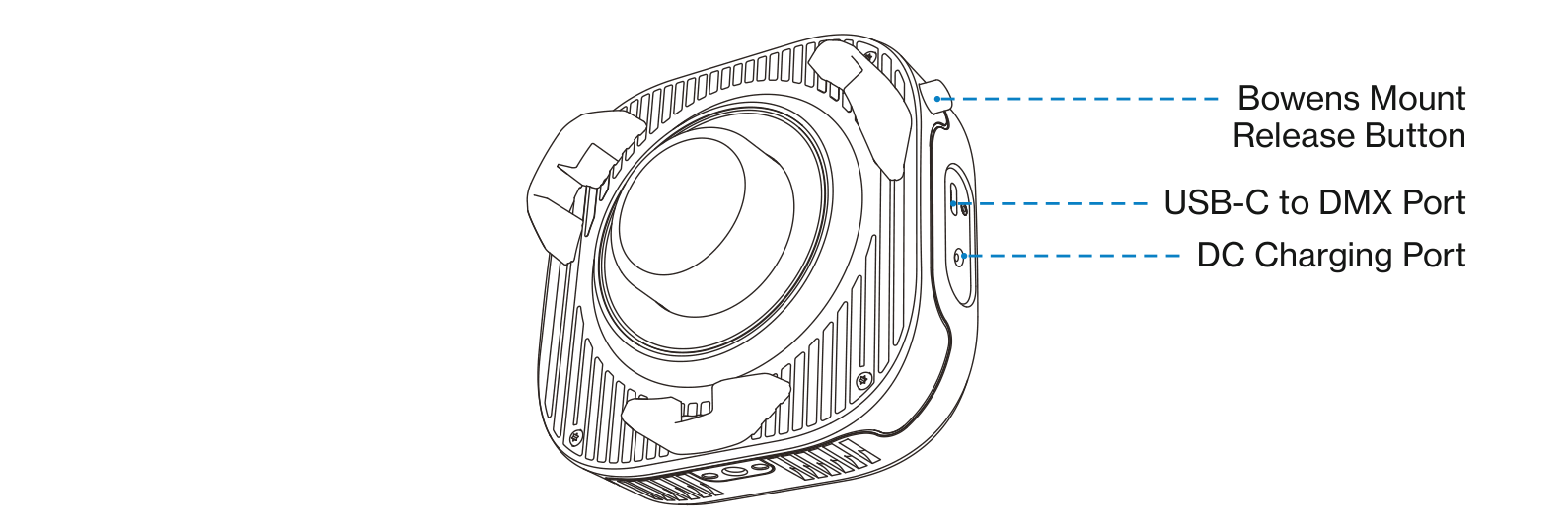
- USB-C to DMX Port: Connect the amaran USB-C to 5-Pin DMX In&Out Adapter (sold separately) for wired DMX control. On the Halo 60x this port does not support power delivery or firmware updates. On the Halo 100x this port supports PD power input only and does not support firmware updates.
- Charging Port: The Halo 60x uses a USB-C Charging Port; the Halo 100x uses a DC Charging Port. Either is used to power the fixture from a PD-supported power supply.
Main Menu
Rotate and press the CCT knob to move between the main menu items: CCT, FX, BT (Bluetooth), Studio, LANG (Language), FAN, DMX, and About.
CCT Mode
After powering on, the fixture is in CCT mode by default. Rotate the CCT knob on top to adjust color temperature, and rotate the INT knob on the bottom to adjust brightness.
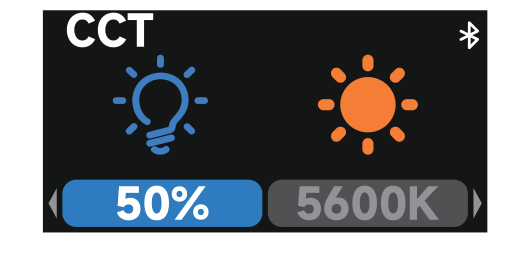
- INT (Intensity): Adjust brightness from 0% to 100%.
- CCT (Correlated Color Temperature): Adjust from warm white (2,700K) to cool white (6,500K).
- Short press the INT knob at any time to quickly switch to CCT mode.
- In any interface, rotating the INT knob directly adjusts the brightness.
FX Mode
From CCT mode, press the Return button to return to the main menu, rotate the CCT knob to FX, and press to enter Effects mode. Rotate the CCT knob to browse the available effects, then press to enter the selected effect's settings.

Supported lighting effects:
- Fireworks
- Faulty Bulb
- Lightning
- TV
- Pulsing
- Strobe
- Explosion
- Fire
- Paparazzi
Bluetooth Reset (BT)
Rotate and press the CCT knob to enter BT mode from the main menu. Press and hold the CCT knob until the progress bar completes to reset Bluetooth. Release the knob before the bar completes to cancel. A checkmark indicates a successful reset; an error icon means the reset failed and should be tried again.
Studio Mode
In the main menu, rotate the CCT knob to Studio, then press to enter the settings. Rotate the CCT knob to toggle between On and Off, and press to confirm. When Studio Mode is enabled, the light turns on automatically when connected to power, without pressing the Power Button.
Language (LANG)
In the main menu, rotate the CCT knob to LANG and press to enter. Rotate the CCT knob to switch between English and Chinese, then press the confirm button to apply.
DMX Control
Insert the USB-C connector of the amaran USB-C to 5-Pin DMX In&Out Adapter (sold separately) into the USB-C to DMX port and tighten the locking screw. Velcro straps can secure the adapter for stability during use. The USB-A port on the adapter provides a 5V/1A output.
To enter DMX mode, rotate and press the control knob to select DMX Mode from the main menu, then rotate the knob to move between these options:
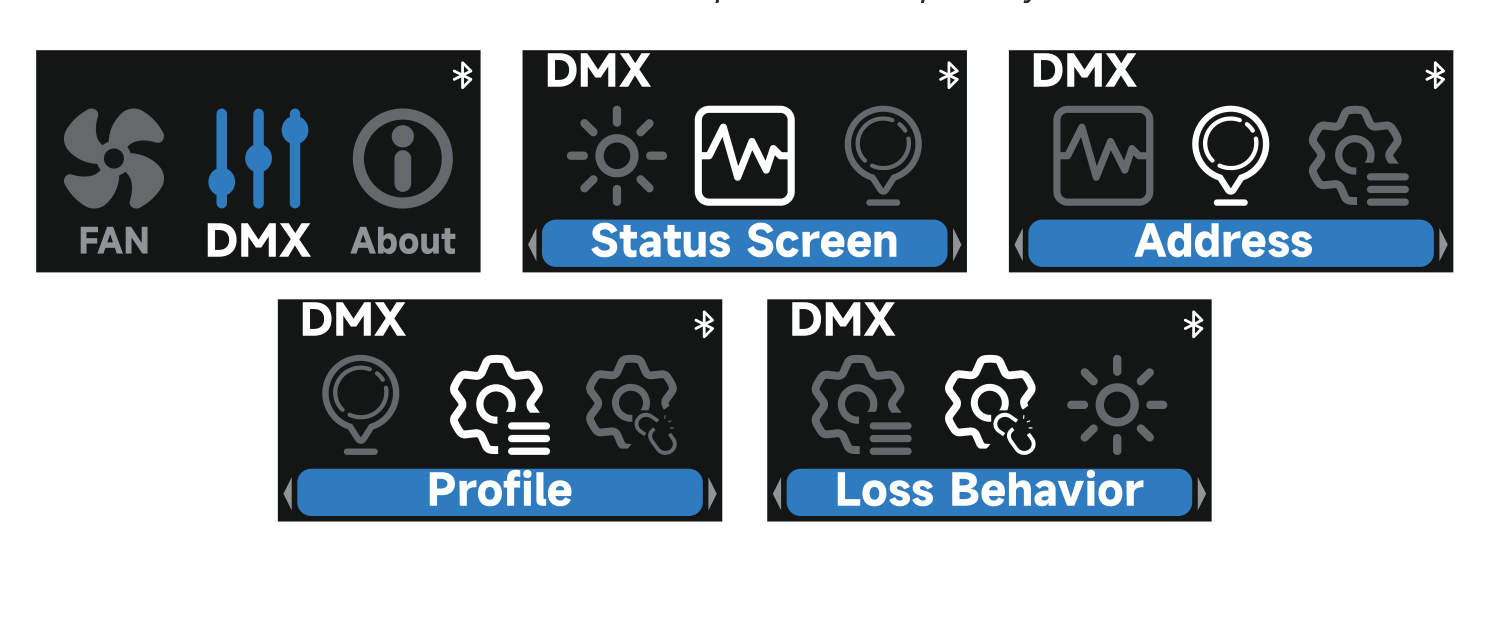
- DMX Status Display: View the current DMX address and selected DMX configuration.
- DMX Address: Set the DMX start address of the fixture, from 1 to 512.
- DMX Signal Loss Behavior: Choose how the fixture responds to DMX signal loss: Hold Last State, Instant Off, Fade Out, or Hold for 2 Minutes then Fade Out.
- DMX Profile: Select the desired DMX channel profile. For detailed configuration files, refer to the official documentation.
Fan Mode (FAN)
Rotate and press the CCT knob to enter Fan mode from the main menu. Rotate the dial to toggle between fan modes and press to confirm:
- Silent Mode: The fan is completely off and the light produces no noise. To keep operation safe, the Halo 60x maximum power is limited to 11W and the Halo 100x maximum power is limited to 20W.
- Smart Mode: Fan speed adjusts automatically based on the light's temperature.
- High Mode: The fan runs at maximum speed for enhanced cooling, ideal for high-load scenarios.
Firmware Update
Firmware updates are performed online through the amaran App, keeping the device up to date with the latest features and performance improvements. The current software and hardware versions are shown under About in the main menu.
Pairing via NFC
To pair the light with the amaran App via NFC, open the app, tap the + sign, and select NFC Add Device. Place the NFC sensor area of your phone against the fixture's NFC tag. Hold your phone still until the fixture is detected and paired before moving your phone away. NFC pairing works even when the light is powered off; the light connects to the app automatically once it is turned on.
Using the amaran App
Download the amaran mobile app from the iOS App Store, Google Play Store, and other platforms, or download the desktop app for Mac and Windows from the amaran website. Visit amarancreators.com for more details on using the app to control your amaran lights.