.png?width=200&height=32&name=Logo_amaran_Blue_20240811a%20(3).png)
Every amaran Ray shares the same on-device interface and lighting modes. This guide explains the physical controls, how to navigate the main menu, and every lighting mode and function setting. A few features are specific to one form factor, and those are noted below. For power and mounting, see [amaran Ray] Getting Started.
On-device controls
- FlowTurn Knob: Rotate to browse the menu or adjust values such as brightness, color temperature, and color mode.
- Confirm Button: Confirms a selected setting or enters the highlighted menu. On the Ray 360c and 660c, the FlowTurn knob is pressed inward to confirm.
- Return Button / Custom Button: Click to return to the previous screen. Hold or double-click to run the shortcut assigned in Custom Mode.
- Power Button (Ray 60c / 120c): Double-click to turn the light on or off.
- Power Switch (Ray 360c / 660c): Toggle at the bottom of the light to turn it on or off.
Navigating the main menu
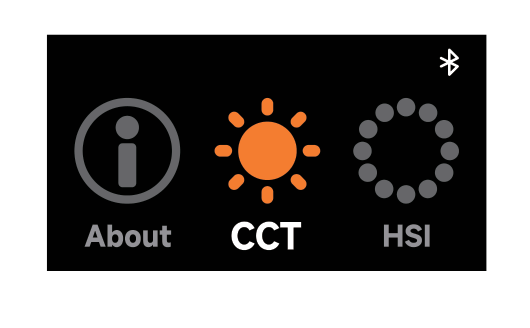
Rotate the control knob to browse the options, then press the Confirm button (or press the knob) to select a lighting mode or adjust a function setting.
Lighting modes
CCT Mode
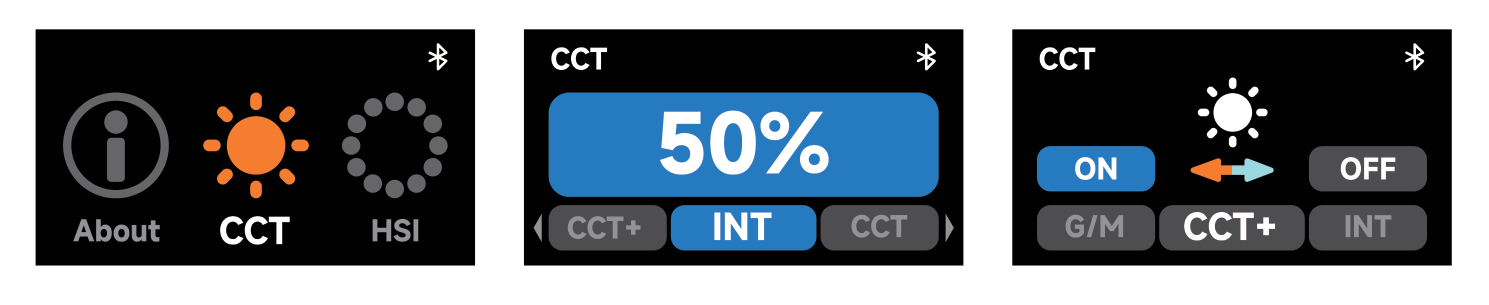
In CCT Mode, press the Confirm button to toggle between parameters and rotate the knob to adjust each value:
- INT (Intensity): Brightness from 0% to 100%.
- CCT (Correlated Color Temperature): Color temperature from warm white (2,300K) to cool white (10,000K).
- G/M (Green-Magenta): Green-magenta shift in plus or minus 10 increments.
- CCT+ (Expanded CCT): Enables or disables the extended range. When on, the adjustable range expands to 1,800K to 20,000K. Note that color rendering is lower within the expanded range.
HSI Mode
Press the Confirm button to select INT, HUE, or SAT and rotate the knob to adjust:
- INT (Intensity): Brightness from 0% to 100%.
- HUE: Hue value from 1° to 360°.
- SAT (Saturation): Color saturation from 0% to 100%.
RGB Mode
Press the Confirm button to select INT, Red, Green, or Blue and rotate the knob to adjust each value:
- INT (Intensity): Brightness from 0% to 100%.
- Red / Green / Blue: Each color channel from 0% to 100%.
FX Mode
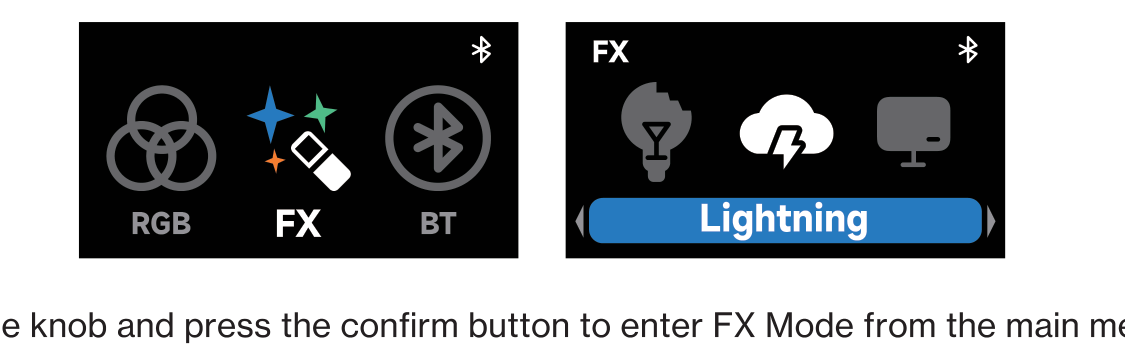
In FX Mode, rotate the knob to switch between lighting effects. After entering an effect's settings, rotate the knob to adjust the corresponding value. The Ray supports 13 built-in effects:
- Fireworks, Faulty Bulb, Lightning, TV, Pulsing, Strobe
- Explosion, Fire, Paparazzi, Welding, Cop Car, Party Lights
Function settings
BT (Bluetooth Reset)
Enter BT mode, then press and hold the Confirm button (or knob) until the progress bar completes. Release early to cancel. A checkmark confirms a successful reset; a red icon means the reset failed and should be repeated.
Custom Mode
Assign a custom shortcut to either a long-press or double-press of the Return button. Available functions: No, SOS, Bluetooth Reset, CCT Mode, HSI Mode, RGB Mode, FX Mode, Rotation, CCT+, and Fan Mode.
LANG (Language)
Switch the interface between English and Chinese.
Studio Mode (Ray 60c / 120c)
When Studio Mode is on, the light automatically turns on after connecting to a power supply, reducing the need to press the power button.
HFR Mode (High Frame Rate)
When on, the light is optimized for high-speed shooting at up to 240fps with minimal flicker. When off, the fixture operates in standard mode. Note that with HFR on, minimum brightness is limited to 50%; disable HFR to go lower.
Fan Mode
Toggle between two fan modes:
- Silent Mode: The fan turns off completely for noise-free operation. To stay safe, maximum output is capped (9W on the Ray 60c, 54W on the Ray 360c, 99W on the Ray 660c).
- Smart Mode: Fan speed adjusts automatically based on the light's temperature.
DMX Control (Ray 360c / 660c)
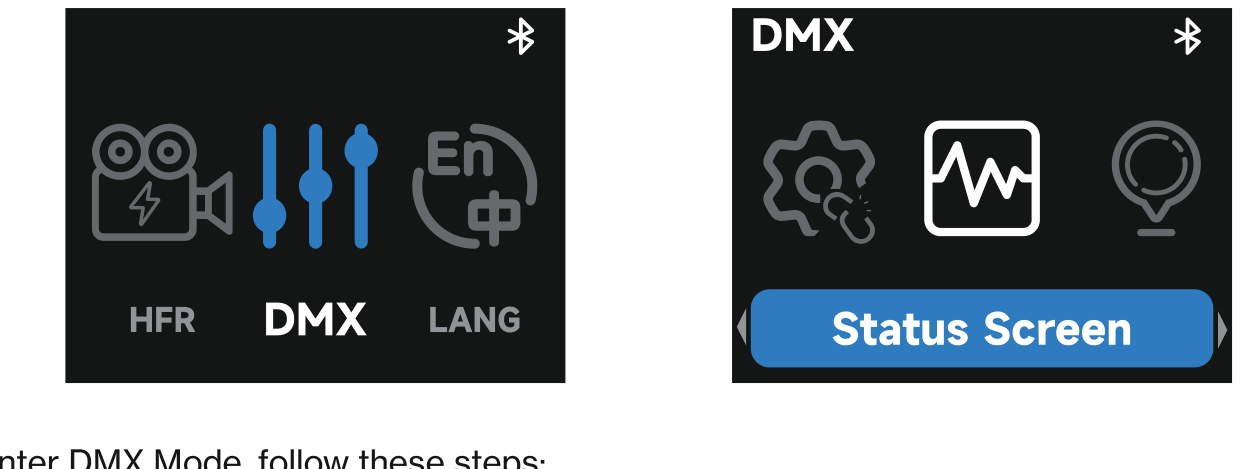
Insert the USB-C connector of the amaran USB-C to 5-Pin DMX In & Out Adapter (sold separately) into the fixture's USB-C port and tighten the locking screw. Then enter DMX Mode from the main menu and rotate the knob between these options:
- DMX Status Display: View the current DMX address and selected configuration.
- DMX Address: Set the start address from 1 to 512.
- DMX Signal Loss Behavior: Choose Hold Last State, Instant Off, Fade Out, or Hold for 2 Minutes then Fade Out.
- DMX Profile: Select the desired channel profile. Refer to the official documentation for configuration files.
Firmware update
Firmware can be updated online via the amaran app. On the Ray 360c and 660c, firmware can also be updated from a USB flash drive: plug a USB-C drive directly into the fixture's DMX port, or insert a USB drive into the DMX adapter's USB-A port.
Controlling the Ray with the amaran app
Download the amaran mobile app from the iOS App Store, Google Play Store, or the amaran website (desktop app for Mac and Windows). To pair via NFC, open the app, tap the plus sign, select NFC Add Device, and hold your phone's NFC sensor to the fixture's NFC tag until it is detected. NFC pairing works even when the light is powered off; the light connects automatically once turned on. Visit amarancreators.com for more on app control.