.png?width=200&height=32&name=Logo_amaran_Blue_20240811a%20(3).png)
This article covers the on-board controls, ports, and menu of the amaran Pano 120c, including its lighting modes, FX effects, and settings. For powering and mounting the light, see [amaran Pano 120c] Getting Started.
Controls and Ports
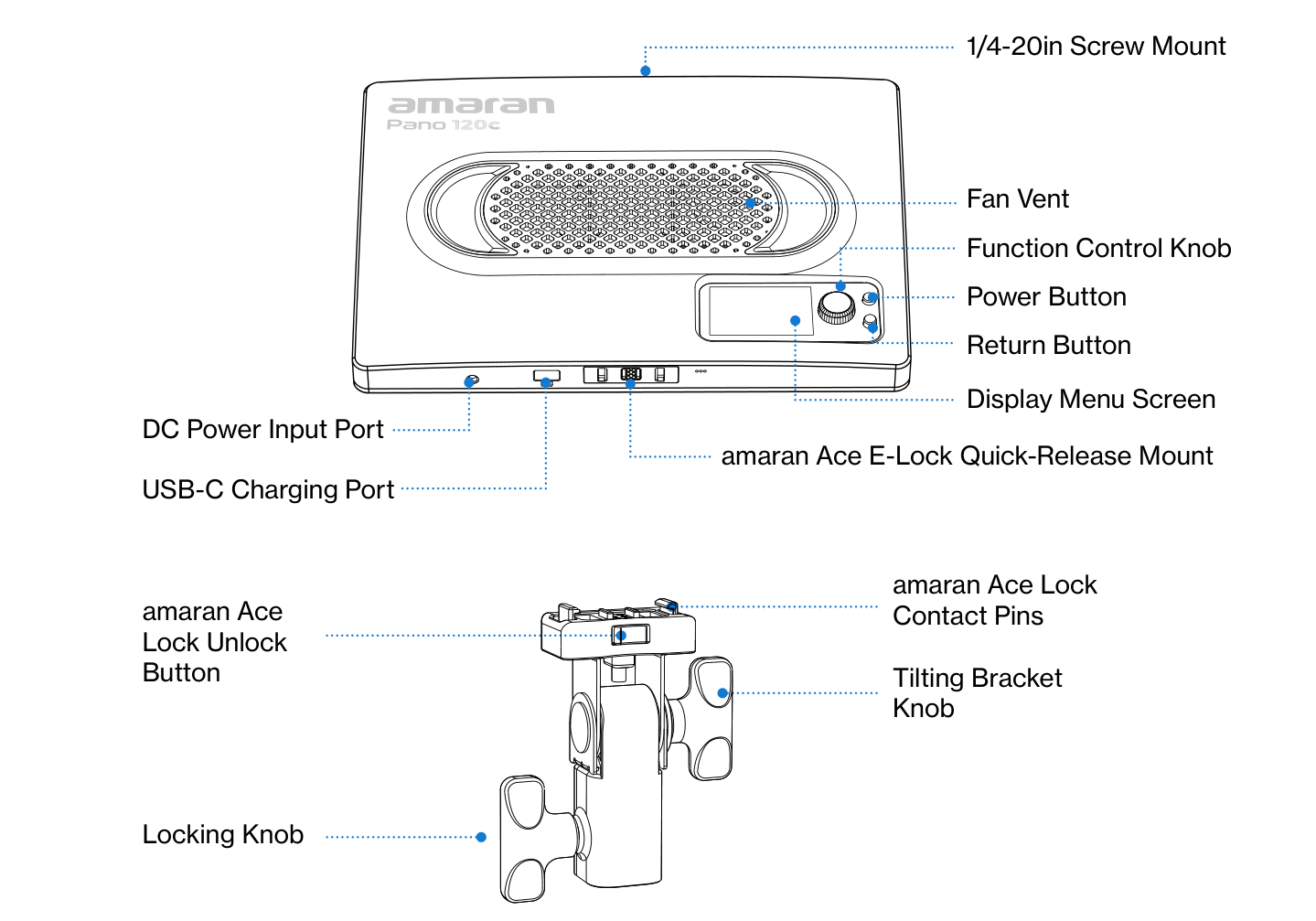
- Power Button: Press to turn the light on, and hold for 1 second to turn the light off. The indicator light will be on when the light is powered on.
- Return Button: Click to return to the previous menu screen. Hold or double click the return button to execute customizable shortcuts set in Custom Mode.
- Function Control Knob: Rotate to toggle the menu or adjust values and lighting settings. Press the knob to confirm parameters.
- Display Menu Screen: Displays the settings and status of your light.
- Fan Vent: Helps the light dissipate heat. Please do not block the fan vent when using the light.
- amaran Ace E-Lock Quick-Release Mount: Install and disassemble the light in less than a second with the amaran Ace Lock ecosystem. The light can also be powered by the amaran Peak power bank accessory, which is sold separately.
- USB-C Charging Port: Used to charge the fixture via a PD-supported power supply.
- DC Power Input Port: Used to power the fixture with the included amaran 150W DC Locking Power Adapter. The included DC cable is pull-resistant, so avoid pulling the cable with force to prevent damage.
- 1/4-20in Screw Mount: Mount the light onto 1/4-20in tripods or other equipment.
Main Menu
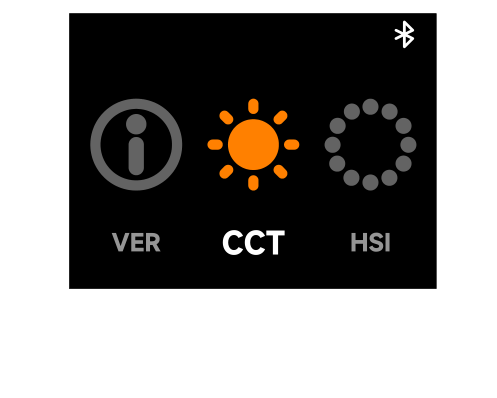
Rotate and press the Function Control Knob to select light modes and settings.
CCT Mode
Rotate and press the knob to enter CCT mode from the main menu. In CCT mode, press the knob to select INT or CCT and rotate the dial to adjust the corresponding value.
- INT (Intensity): Adjust your light's brightness from 0% to 100%.
- CCT (Correlated Color Temperature): Adjust your light's color temperature from warm white (2,300K) to cool white (10,000K).
- G/M (Green-Magenta): Adjust the green-magenta shift in +/-10 increments.
After 3 minutes of inactivity while the light is in CCT mode, it will automatically switch to Quick Operation Mode. Quick Operation Mode allows you to quickly adjust your light's settings without toggling through the menu. The menu screen will display the current color temperature value and brightness level. Rotate the control knob to adjust your brightness levels. Press and rotate the knob to adjust your color temperature value from warm white to cool white. Press the Return button to exit Quick Operation Mode and return to your previous interface.
HSI Mode
Rotate and press the knob to enter HSI mode from the main menu. In HSI, press the knob to select INT, HUE, or SAT and rotate the dial to adjust the corresponding value.
- INT (Intensity): Adjust your light's brightness from 0% to 100%.
- HUE: Adjust your light's hue value from 1° to 360°.
- SAT (Saturation): Adjust the saturation of the color from 0% to 100%.
RGB Mode
Rotate and press the knob to enter RGB mode from the main menu. In RGB, press the knob to select INT, Red, Green, or Blue and rotate the dial to adjust the corresponding value.
- INT (Intensity): Adjust your light's brightness from 0% to 100%.
- Red: Adjust your light's Red value from 0% to 100%.
- Green: Adjust your light's Green value from 0% to 100%.
- Blue: Adjust your light's Blue value from 0% to 100%.
FX (Lighting Effects)
Rotate and press the knob to enter FX mode from the main menu. In FX, rotate and press the knob to select your lighting effect. Press again to enter the settings and rotate the dial to adjust the corresponding value.
Supported lighting effects:
- Fireworks
- Faulty Bulb
- Lightning
- TV
- Pulsing
- Strobe
- Explosion
- Fire
- Paparazzi
- Welding
- Cop Car
- Party Lights
Bluetooth Reset
Rotate and press the knob to enter BT mode from the main menu. Hold down the knob until the end of the progress bar to reset Bluetooth. Release the knob to cancel. The screen will confirm whether the Bluetooth reset was successful. If it is unsuccessful, please reset Bluetooth again.
Custom Mode
Rotate and press the knob to enter Custom mode from the main menu. In Custom mode, press the knob to select customizable shortcuts for a long press (Hold) or double click (Double) of the Return button. Rotate the dial to select between None, CCT, Rotation, HSI, or BT Reset shortcut functions. A short press of the Return button defaults to the return/back function and cannot be changed.
Language
Rotate and press the knob to enter Language settings from the main menu. In Language, rotate the dial to toggle between English or Chinese. Press the knob to confirm your language.
Fan Mode
Rotate and press the knob to enter Fan mode from the main menu. In Fan mode, rotate the dial to toggle between Silent and Smart fan mode. Press the knob to confirm your settings.
- Silent Mode: The fan will be completely turned off, and the light will not produce any noise. The power output will be limited to 25W.
- Smart Mode: The fan speed will automatically adjust according to the temperature of the light.
Studio Mode
Rotate and press the knob to enter Studio mode from the main menu. Press the knob to cycle between On/Off. When Studio mode is turned on, the light will automatically turn on after connecting to a power supply, reducing the need to manually press the power button.
Expanded CCT
Rotate and press the knob to enter Expanded CCT mode from the main menu. Press the knob to cycle between On/Off. When Expanded CCT mode is turned on, the adjustable color temperature in CCT mode is expanded to 1,800K to 20,000K CCT. Please note that the color rendering when in the expanded CCT range is lower.
Firmware Updates
Firmware can be updated online via the amaran app or Sidus Link. You can check the current software (SW) and hardware (HW) version in the VER menu on the display screen.
Using the amaran App
You can download the amaran mobile app from the iOS App Store, Google Play Store, and other platforms for enhancing the functionality of the light. You can download the amaran desktop app for Mac and Windows from the amaran website. Please visit amarancreators.com for more details on how to use the app to control your amaran lights.