
The amaran Desktop app is creator-focused desktop software built for the full amaran ecosystem. It supports function configuration for amaran lights, microphones, and more, delivering streamlined device control and advanced audio tuning tools. With the amaran Mic, you can use it to set volume, switch noise reduction, and access advanced settings such as EQ, limiter, and noise gate. You can download the amaran Desktop app from the official amaran website, amarancreators.com.
For the equivalent on-device controls, see [amaran Mic] Operation & Controls.
Basic Microphone Settings
Volume Adjustment
- Microphone Gain: sets the microphone volume on a scale of 0 to 100.
- Headphone Volume: sets the headphone monitor volume on a scale of 0 to 100.
Noise Reduction Mode Switch
Switch between noise reduction modes for different suppression effects:
- Original: noise reduction off.
- Standard Noise Reduction: light suppression for steady background noise such as fans, computers, and air conditioners. Use Select Gear to choose Mild, Moderate, or Strong.
- AI Deep Noise Reduction: powerful suppression to eliminate random and sudden noise for cleaner audio.
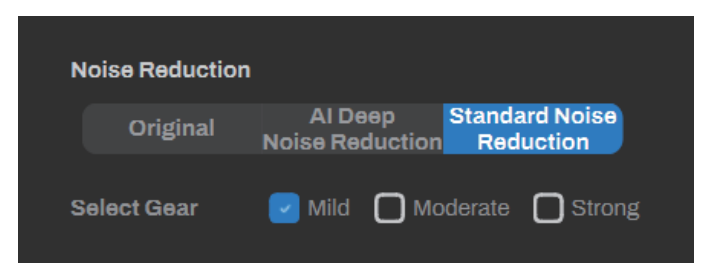
When AI Deep Noise Reduction is enabled, avoid capturing other people's voices. Alternatively, shorten the recording distance and reduce mic gain for purer vocal audio.
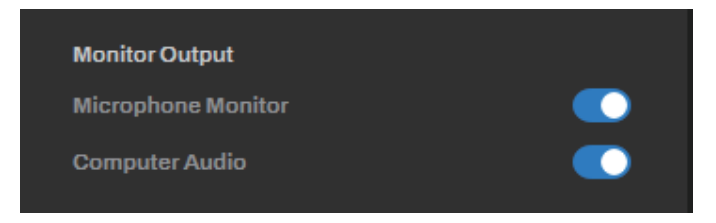
Monitor Output Toggle
The monitoring jack outputs both your mic voice and device audio (PC, phone, or game console). Use the Microphone Monitor and Computer Audio toggles to turn playback of each source on or off independently.
Advanced Microphone Settings
Vocal Enhancement
When enabled, Vocal Enhancement optimizes gain for vocal frequency bands to capture a fuller, clearer voice. Its Gain slider ranges from 0dB to 24dB.
Limiter
The Limiter caps audio peaks at your set Threshold to avoid clipping and distortion from sudden loud sounds, keeping your recording stable. The threshold ranges from -90dB to 0dB.
Noise Gate
The Noise Gate mutes background noise below your custom Threshold during silent pauses, blocking ambient hum and stray interference. The threshold ranges from -75dB to -30dB.
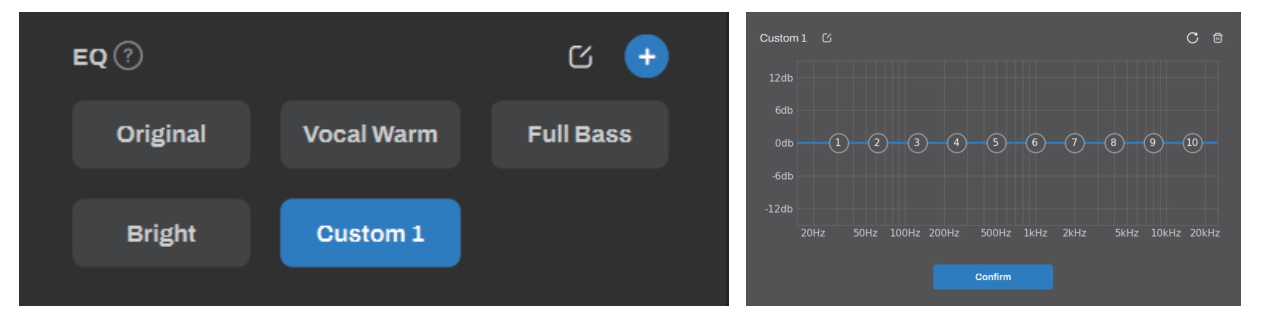
Equalizer
The EQ comes with multiple built-in presets (Original, Vocal Warm, Full Bass, and Bright) and customizable frequency tuning, so you can shape your tone for personalized recording needs. Custom presets use a 10-band editor.
Monitor Mix Ratio
The Monitor Volume slider adjusts the balance between mic input and device audio (PC, phone, or game console) in your headphones:
- Slider far left: mutes device audio and plays only mic sound.
- Slider far right: mutes the mic and plays only device audio.
- Drag the slider in between to balance the two sources for different mixing scenarios.
Pairing the Receiver
If you need to re-pair the microphone and receiver, connect the wireless receiver to your computer, open the amaran Desktop app, and click the pairing button while the microphone is in pairing mode. The app shows a pop-up when pairing is complete. For the full steps, see [amaran Mic] Operation & Controls.
Firmware Update
Connect the mic to your computer with the USB-C cable, then update firmware via Device Update in the amaran Desktop app.